
A few months ago, I needed a list of about 300 physiotherapists who worked in London. I wanted to know their phone numbers, average ratings, total number of reviews, and exact street addresses. I began doing it by hand. I lost my place in the infinite-scroll sidebar about fifteen entries in when I accidentally clicked on a map marker. I had to start over from scratch. In 2026, copying and pasting from a dynamic web interface should not be the answer.
There had to be a better way to scrape data from Google Maps.
Google Maps has the world’s most comprehensive database of local businesses. But getting that data out of their interface and into a clean, usable spreadsheet at scale is notoriously non-trivial. No button says “Download All to CSV.”
Quick Answer
| Method | Best for | Setup time | Maintenance |
| Chat4Data (AI agent for data colelction) | Non-coders, one-off lists, ad-hoc research | ~2 minutes | Zero |
| Python + Playwright | Developers building automated pipelines | 30–60 minutes | Medium |
| GitHub repos | Learning, prototyping, dev teams with fork capacity | 15–30 minutes | High |
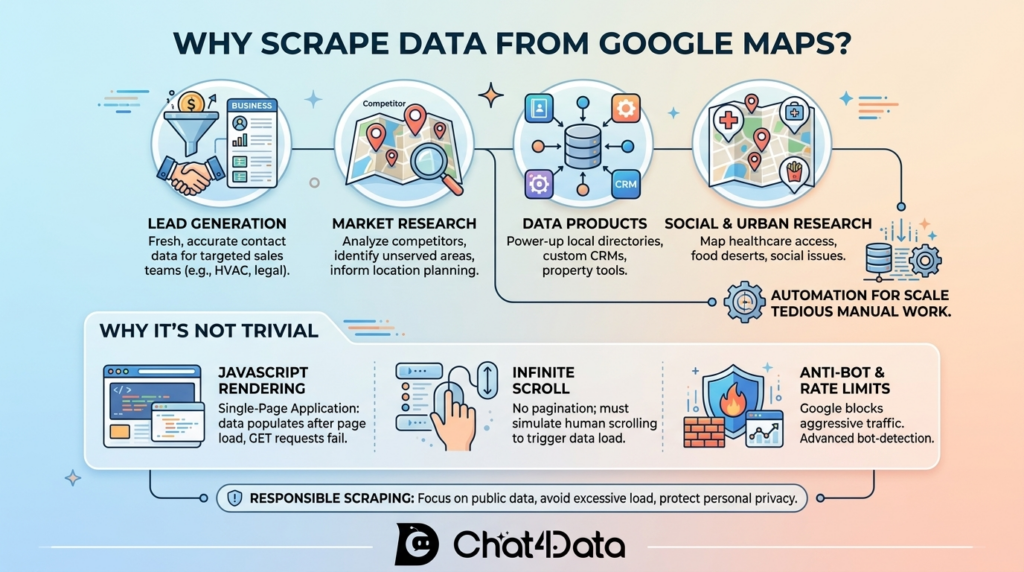
Why Scrape Data from Google Maps?
Google Maps is more than navigation, it’s a structured database of business names, ratings, hours, phone numbers, GPS coordinates, website URLs, and business categories, all regularly updated by the business owners themselves.
- Lead generation. The sales team extracts contact details from all contractors and clinics, and law firms located in the designated municipal area. The direct source extraction method provides access to up-to-date data, replacing outdated broker directories.
- Market research. Franchise teams use competitor density, review volume, and customer traffic data to identify markets that require better service before selecting their next operational site.
- Data products. Hyper-local business directories, custom CRMs, and property analytics tools often use Google Maps data as their foundation layer.
- Academic research. Urban planners and researchers map healthcare access in rural areas, identify food deserts, and study neighborhood amenities at scale.
Collecting 100 business records by hand takes hours. At 1,000+ records, it’s impossible. You need automation.
Why Google Maps Is Hard to Scrape
Scraping data from Google Maps isn’t as simple as sending a normal HTTP request. Here are the main challenges:
- JavaScript-rendered content: Google Maps is a single-page application (SPA). The initial HTML contains mostly empty elements. After the page loads, JavaScript fills in business names, addresses, ratings, and other details. Without rendering JavaScript, your scraper won’t see any of this data.
- Infinite scrolling: The results panel doesn’t use standard pagination. New listings only appear when you scroll down. To scrape more results, your bot must mimic human scrolling and trigger these dynamic network requests.
- Traffic monitoring and bot detection: Google closely monitors traffic. High-frequency requests from data center IPs can trigger advanced bot detection and immediate blocking.
- Legal considerations: Scraping publicly available business data (names, addresses, hours, ratings) is generally legal. However, scrape responsibly: avoid overloading servers and do not collect personal information about individual reviewers.
How to Scrape Data from Google Maps (Step-by-Step Guide)
Method 1: Chat4Data (No-Code AI)
If you want to scrape data from Google Maps without writing a single line of code, this is where I’d start.
Chat4Data is a conversational AI agent for data collection. As a lightweight Chrome extension, it requires no setup, no downloads, and no third-party cloud storage. Just open the extension, type what you want, and it automatically navigates to your target site, identifies your targeted fields, handles pagination, and delivers clean structured output as Excel, CSV, or JSON.
Say, “get business name, rating, review count, and address for every coffee shop on this page” — and the agent shows you exactly what it’ll do before running, then exports the data as Excel, CSV, or JSON. Two steps to data: describe, confirm, done.



I use this a lot for research tasks that only need to be done once are one-offs. Last week I needed a list of coffee shops in Vienna with their review counts to figure out which neighborhoods tourists actually walk through. Chat4Data returned 87 cafés with names, ratings, review counts, and addresses in about 3 minutes. I spot-checked 10 against Google Maps directly — all 10 matched.
Best for: Analysts, small businesses, recruiters, and anyone who needs Google Maps data quickly without building or maintaining a scraping pipeline.
How it works: The agent looks at the page the way a person does — it understands what “rating” or “phone number” means on this specific page rather than matching a fixed pattern. When Google changes its layout, you don’t need to update anything.
Step-by-Step Google Maps Scraping with Chat4Data
Step 1: Set up and use
Add the Chat4Data extension to Chrome from the Web Store. Pin it, then open Google Maps in your browser and sign in or create a Chat4Data account.
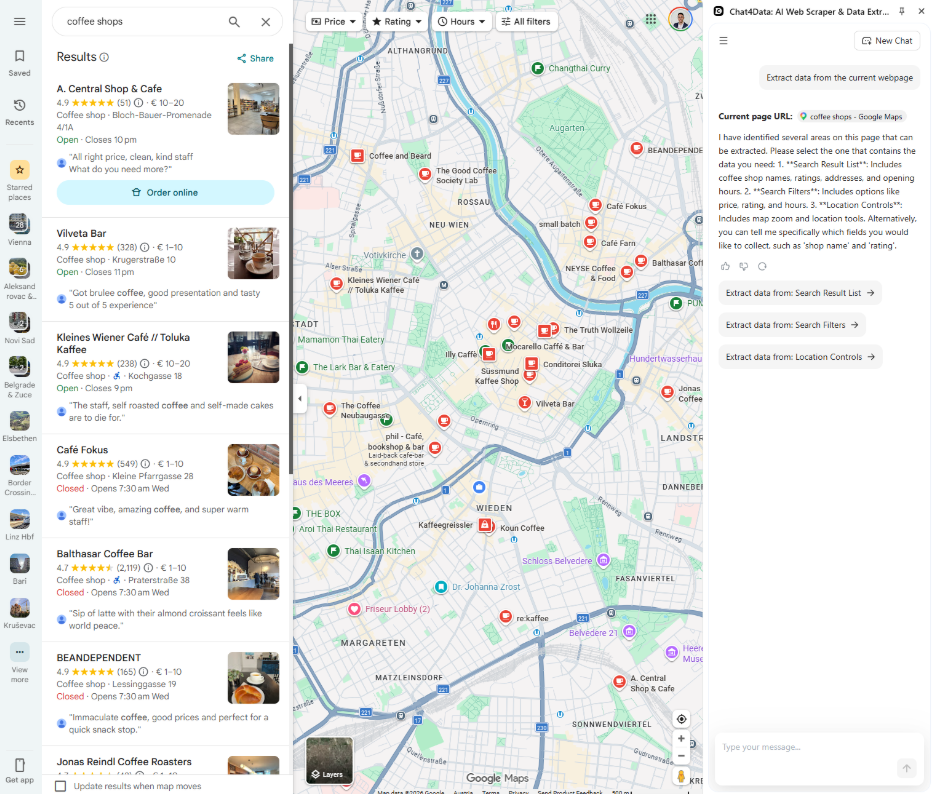
Step 2: Tell the AI what to do
Right there on the page, open the Chat4Data sidebar. No DOM inspection, no selector setup. Type what you want in one sentence. For my Vienna coffee shop list, I typed:
Step 3: Getting AI Out
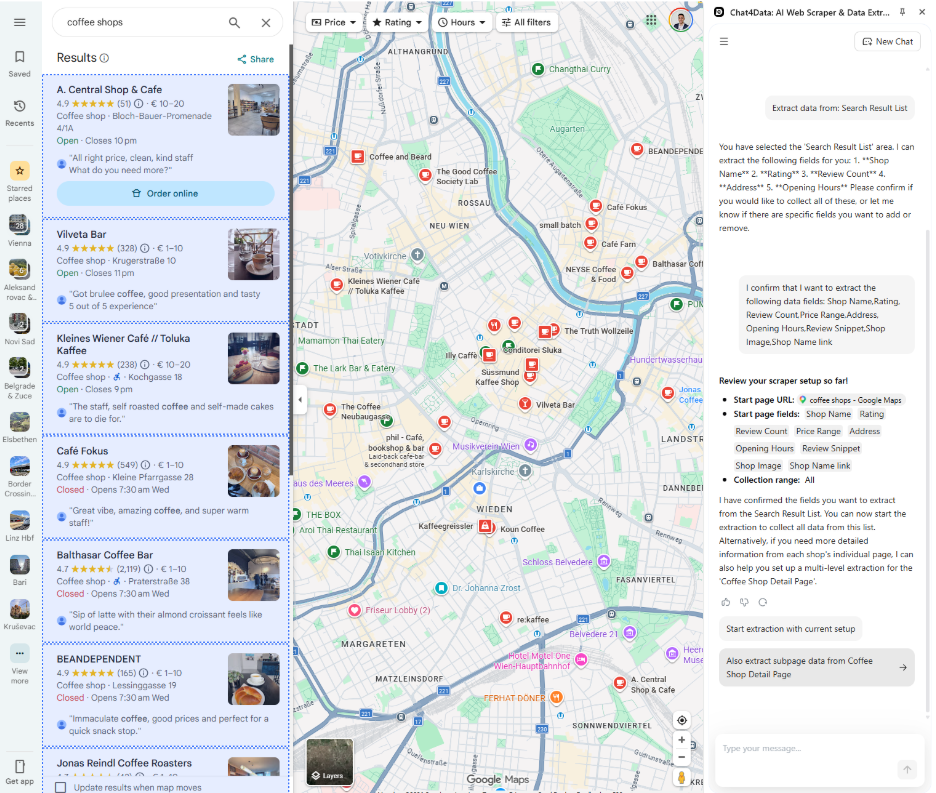
Before running, Chat4Data shows you exactly what it intends to do — every step, in order. For my Vienna prompt, the plan was: locate the results sidebar → scroll incrementally → extract the four fields per listing → de-duplicate → stop at 100 results. Tweak it (“also grab the phone number”) or hit run.
The agent then executes. It looks at the page visually, the way a person would, instead of parsing fragile HTML. Google’s CSS class names look like gibberish — fontBodyMedium hfv68b — and they change often. A regular scraper breaks when that happens. Chat4Data adapts because it’s reading the page, not the markup. Infinite-scroll handling is automatic.
Step 4: Export
You check the data and click download after the table is full. You get Excel, CSV, or JSON — clean columns, ready to paste into a sheet or load into a script.
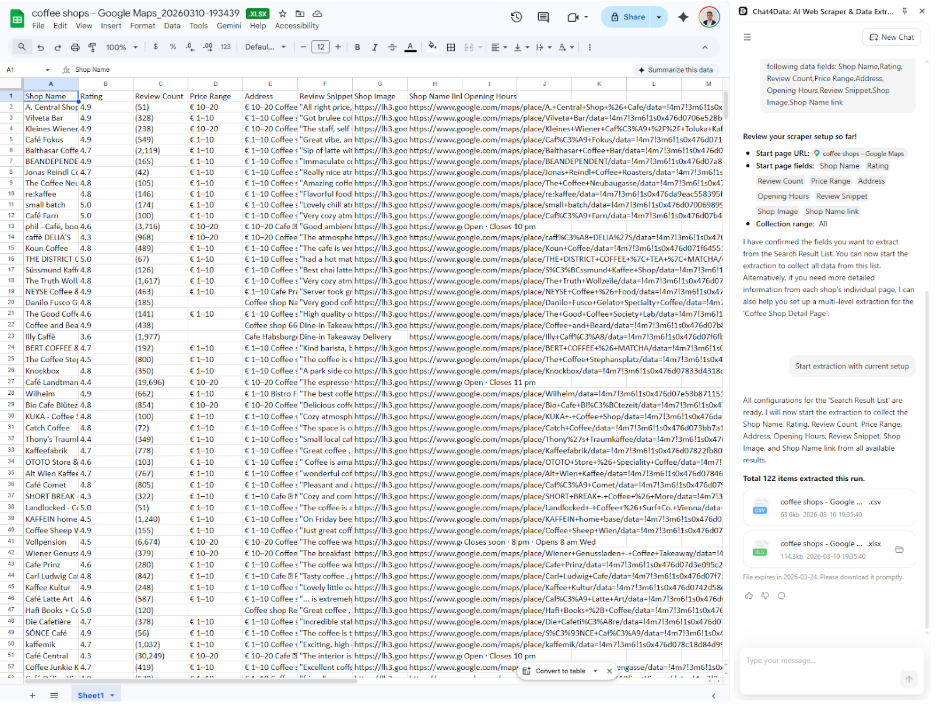
Five things make this method worth a try if you’re not a developer:
- Conversational interaction: No learning curve at all, the quickest way for no-code users
- Adapts to dynamic pages: Keeps extracting accurately when Google ships a new layout (which happens monthly), nothing on your end breaks.
- Handles complex pages: Pagination, infinite scroll, detail pages, and one-level-deeper extraction.
- Local-first privacy: Scraping happens in your browser. The data lives on your machine — nothing is uploaded to Chat4Data’s servers or other third party data storage server.
Configure a task once, and it’s reusable. Re-run the Vienna coffee shop scrape next month with a single click.
Method 2: Python with Playwright for Google Maps Scraping
Python gives you full control if you need to schedule scraping, integrate databases, or extract data at a large scale.
What it is: A custom script that uses Playwright to automate browsers and BeautifulSoup to parse the DOM, and Pandas to organize data.
Best for: Developers building automated pipelines that write straight into databases, dashboards, or downstream apps.
How it works: Playwright opens a headless browser, runs the search query, scrolls the results container to load more listings, and then parses the rendered DOM.
Step 1: Set up the environment
You will need some libraries. Playwright controls the browser, BeautifulSoup (which is optional but helpful) parses the HTML, and Pandas organizes the data.
Step 2: Start a headless browser
We need a script that opens Google Maps, types in a question, and waits for the results panel to load.
Steps 3 and 4: Scroll down to see more results and parse
This is the hardest part. The results panel uses infinite scroll, so you have to programmatically scroll the container that holds the listings — not the page itself.
Three things to know before you read the code:
- The selector for the scroll container. Google labels the results sidebar with div[role=”feed”]. That’s the element you scroll, not the window. Scrolling the wrong element does nothing.
- Why time.sleep(3) matters. After each scroll, Google fires a network request to load the next batch. If you don’t wait long enough, those requests don’t finish, and the new listings never enter the DOM. Three seconds is conservative; one second works on a fast connection, but you’ll miss listings on a slow one.
- The class names rot. The example uses div.TF9SBe and div.qBF1Pd. Google rotates these every few weeks. When the script stops returning data, open Chrome DevTools, inspect a listing card, find the new class, and update the selector. You’ll do this every month or two.
Limitations: Google changes DOM class names without warning, which breaks your selectors. You will need to check the DOM again and again and update the script. If you do not use proxy rotation and random delays, you will get soft-banned very quickly.Without proxy rotation and random delays, you’ll get soft-banned within minutes from a single IP.
Price: Free, but there are costs for the infrastructure needed for proxies and computing.
Maintenance: Medium. Expect regular updates to the selector and ongoing management of the proxy.
Rate-limit warning from my own testing: The first time I ran a similar script with no delays, I tried to push 50 scrolls through in 2 seconds. Soft-banned in under 4 minutes. Re-running with a random 2.0–4.5s sleep between scrolls held for 200+ businesses without a single block.
Method 3: GitHub Repositories
The open-source community has you covered if you want the power of a programmatic script but do not want to write the Playwright logic from scratch. There are many well-maintained repositories (and some that aren’t) made just for scraping data from Google Maps.
.There are usually three kinds of repositories: older Selenium-based scrapers, newer Playwright wrappers, and heavy-duty Scrapy spiders
Step 1: Vet the repo before you trust it
Google’s frontend changes constantly. If the repo’s last commit was 8 months ago, assume it’s broken. Check four things:
- Last commit date on the core parsing files (not just the README).
- Open issues tab — search “empty” or “no results.” If 10+ unanswered “returns empty CSV” issues, move on.
- Maintainer responsiveness — when did they last reply?
- README clarity — if the setup instructions are vague, the code probably is too.
The most active Google Maps scraper on GitHub right now is gosom/google-maps-scraper, written in Go. It supports fast mode (up to 21 results per query) and grid mode (which splits a bounding box into cells when a single search isn’t enough).
Step 2: Clone, install, run
This method has some real trade-offs.
Pro: It is free, you can change it to fit your needs, and it gives you a huge head start. Reading someone else’s architecture is learning how scraping works behind the scenes. It is a great way to prototype quickly.
Con: You take on someone else’s technical debt. Often, these scripts lack effective proxy management. You will not get any help if Google changes its CSS and the script breaks without saying anything. It is up to you to figure out what is wrong with someone else’s scraping logic.
When is it a good idea to use a GitHub repo? If you are learning how to automate the web, building a quick prototype over the weekend, or have a developer who can keep a fork of the codebase up to date, I suggest it. If you need something production-ready, very reliable, or time-sensitive, Method 1 (if you want no-code) or Method 2 (if you want to own your own custom pipeline) is usually the better choice.
Limitations: You take on someone else’s technical debt. Most repos lack effective proxy management. If Google changes its CSS, the script will break without warning, and you will have to figure out how to fix someone else’s parsing logic.
Pricing: Free.
Maintenance: High. You’re responsible for keeping a fork up to date against Google’s changing frontend.
Comparison Table
To give you a clean, scannable decision framework, here is how the three methods stack up.
| Feature | Chat4Data | Python (Playwright) | GitHub Repos |
| Skill Required | None | Intermediate | Intermediate–Advanced |
| Setup Time | 2 minutes | 30–60 minutes | 15–30 minutes |
| Maintenance | Zero (AI adapts) | Medium | High |
| Scalability | High | Very High | Variable |
| Cost | Subscription | Free (infra costs) | Free |
| Reliability | High | High (if maintained) | Low–Medium |
| Best For | Analysts, SMBs, one-offs | Pipelines, automation | Learning, prototyping |
All the methods give you the same basic information, such as business names, ratings, addresses, and phone numbers. The difference is how much setup, cost, and ongoing maintenance you are willing to deal with. The next section talks about the legal limits that apply no matter which method you choose.
What about the official Google Maps API?
The Places API is sanctioned by Google and reliable, but two limits make it a poor fit for most scraping use cases:
60 results per query. Even if you specify a wide radius, you’ll only ever see 60 places per search. To collect more, you have to grid the map into smaller cells and re-query each one — at which point you’re rebuilding what scrapers already do.
Cost beyond the free tier. Google gives you $200/month of free credit (~28,500 map loads), then it’s per-call pricing. For a one-off list of 1,000 dentists, the API works. For ongoing pipeline work, it gets expensive fast.
The API also doesn’t return review text — only aggregate ratings. If you need actual reviews, scraping is the only option.
Legal and Moral Issues When Scraping Google Maps Data
This section is intended only to provide general information and is not legal advice. Before using any data extraction pipeline, talk to a lawyer who knows what they are doing.
According to U.S. law, it is usually legal to scrape publicly available business information from Google Maps, such as names, addresses, phone numbers, and ratings. But just because something is legal does not mean it can happen.
- Follow the rules about how many times you can do something. Do not use aggressive concurrency to overload Google’s servers. Spread out your requests and use random delays.
- Do not give out personal information. Do not scrape the profiles of individual reviewers or private user information; only scrape business entities.
- Do not sell raw data again. It is normal to scrape public data for internal analysis. Most platforms’ Terms of Service say you cannot resell it without adding value, and doing so could get you banned from the site for good.
- In Europe, GDPR applies. If any scraped data can be used to identify a real person (such as a sole proprietor’s personal email), then GDPR rules on data handling apply.
Conclusion
You do not have to copy and paste local business information from Google Maps by hand. The best way to do it depends on how comfortable you are with technology and how much work you are willing to do.
Chat4Data gets results in minutes without any code, proxy setup, or maintenance when Google changes its UI. Python with Playwright gives developers full control over their pipelines, scheduling, and database integration, but they have to keep fixing selectors. GitHub repositories are a free way to learn and make quick prototypes, but they are not reliable enough for production workloads.
Ready to start? Install Chat4Data, search Google Maps for your target query, and have structured data in a spreadsheet within minutes.
Keep learning
Think about getting access to a goldmine of location data: finding all of your local competitors, spotting new markets, or even keeping track of your business’s growth in real time. That is what scraping data from Google Maps can do. It is not just about addresses; it is about turning basic geographical data into smart business choices. Are you ready to learn how to use Google Maps as your best market research tool?
Here are some good starting points:
- 8 Powerful AI Crawlers for Effortless Data Extraction
- Guide to Turning ChatGPT into a Web Scraping Assistant
- Best Google Maps scrapers: 7 tools tested for 2026
FAQs about Scraping Google Maps
1. What data can I extract from Google Maps?
A properly configured scraper captures:
- business name
- address
- phone number
- website URL
- average star rating
- total review count
- hours of operation
- business category tags
- GPS coordinates.
Some tools also extract individual review text and photos. You can check the best google review scraper and pick one based on your needs.
2. Can I scrape Google Maps reviews?
Yes. You can extract the following from Google Maps listings:
- Individual review text
- Star ratings per review
- Reviewer names
- Review dates
Note that the Google Places API only returns aggregate ratings, not individual review text. If you need full review content, scraping is the only option. Chat4Data handles this with the same plain-English prompt workflow — just describe what you want and it pulls the review fields automatically.
3. Can I get email addresses from Google Maps?
No. Google Maps listings don’t include email addresses. What you can extract:
- Business name
- Phone number
- Website URL
- Address
- Ratings and reviews
- Opening hours
If you need emails, the typical workflow is:
- Scrape business website URLs from Google Maps with Chat4Data
- Visit each website to find the contact page
- Extract the email from there
4. How many Google Maps results can I scrape?
Google Maps caps visible results at around 120 per search query. To collect more:
- Break your search into smaller geographic areas (by neighborhood, district, or zip code)
- Use more specific category queries instead of broad terms
- Run multiple targeted searches and combine the exports
Some tools like Apify’s Google Maps Actor handle this automatically by dividing the map into geographic grids. Chat4Data handles each search automatically — no extra configuration needed between runs.
5. Google Maps Scraper vs Google Places API — which should I use?
The two options serve different needs:
- Results per query — Scrapers have no hard cap. The Places API tops out at 60 per search.
- Review text — Scrapers return full review content. The API only returns aggregate ratings.
- Cost — Scrapers run on a flat subscription. The API is free up to $200/month credit, then per-call pricing.
- Setup — Scrapers take minutes. The API requires an API key and code integration.
Use the API if you need official programmatic access built into an app. Use a scraper for everything else — one-off research, lead lists, review analysis, or any task where the 60-result cap or missing review text is a dealbreaker.
6. Is scraping Google Maps legal?
In the U.S., it is generally legal to scrape publicly available business data. Google’s Terms of Service, on the other hand, say that automated access is not allowed. Be careful when scraping: follow rate limits, avoid collecting personal user data, and consult a lawyer for specific advice.
7. Why does my Google Maps scraper return empty results?
Google Maps is a JavaScript-rendered single-page application. Standard HTTP libraries (requests, httpx) only fetch the initial HTML shell, which contains no business data. You need a headless browser (Playwright, Selenium) or an AI tool like Chat4Data that renders the page fully before extracting.
8. What is the easiest Google Maps scraper for non-technical users?
Chat4Data requires no coding, no proxy configuration, and no knowledge of the DOM. You tell the AI what you want in plain English, and it handles extraction, scrolling, and export. It is the quickest way to get from a search query to a clean spreadsheet.
9. Is there a free Chrome extension to scrape Google Maps?
Yes, Chat4Data offers a free tier that covers most one-off scraping tasks (small lists, single-city research, ad-hoc analyst work). For high-volume or recurring extraction, paid plans add capacity and task scheduling. Verify the current free-tier limits at chat4data.ai/pricing before relying on it for a specific job.