

- what Google Images data actually contains
- why researchers and marketers scrape it
- how to pull it into a spreadsheet without writing a single line of code
What Is Google Images Data?
Google Images is the image search view of Google. You run a query and Google returns a grid of matching pictures, each pulled from a page somewhere on the web. Each result is one image, and behind every thumbnail sits a small set of structured fields. Think of each result as an image with a paper trail. A typical image result includes:- Thumbnail URL (the small preview Google shows in the grid)
- Source image URL (the full-size file on the original site)
- Source page URL (the web page the image appears on)
- Alt text or title
- Image dimensions, where shown
Where to Find the Data
The data sits in two layers on the image search page, and the difference matters for what you get back.- The results grid: Run an image search and Google shows a grid of thumbnails. Each tile holds the thumbnail link, the alt text, and a reference to the source page. This is the fast, wide view across many images at once.
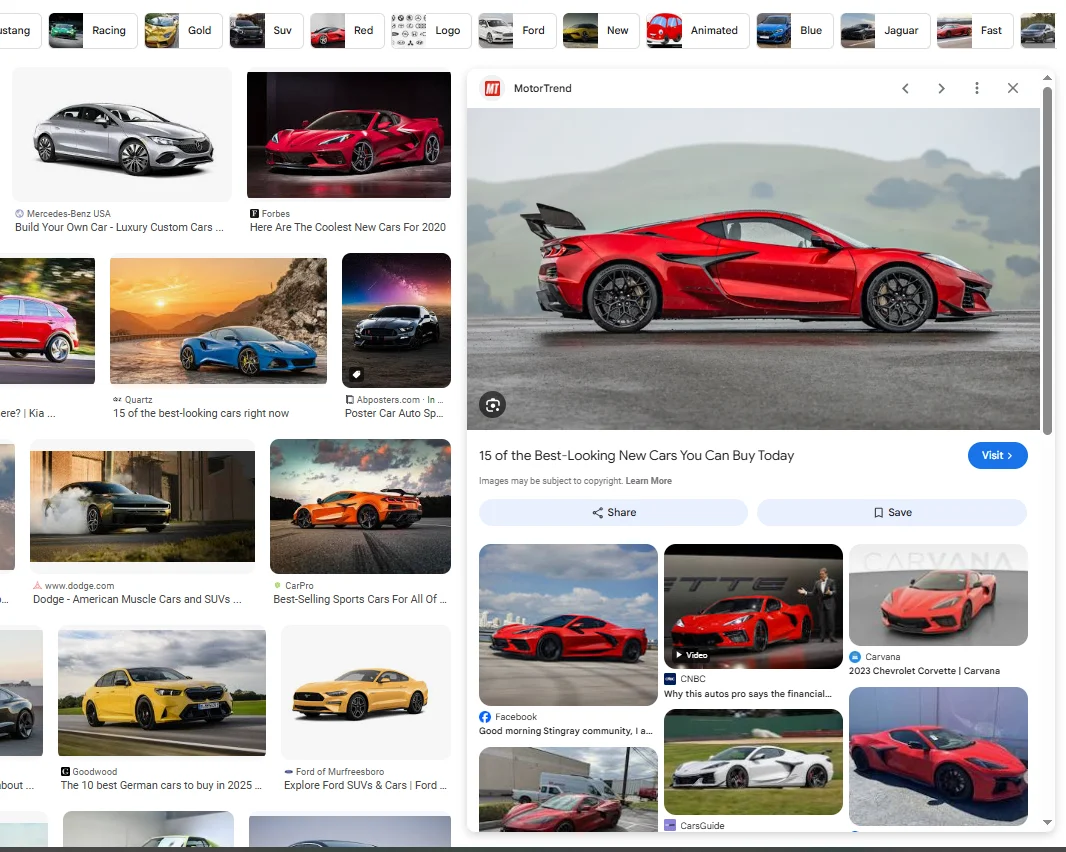
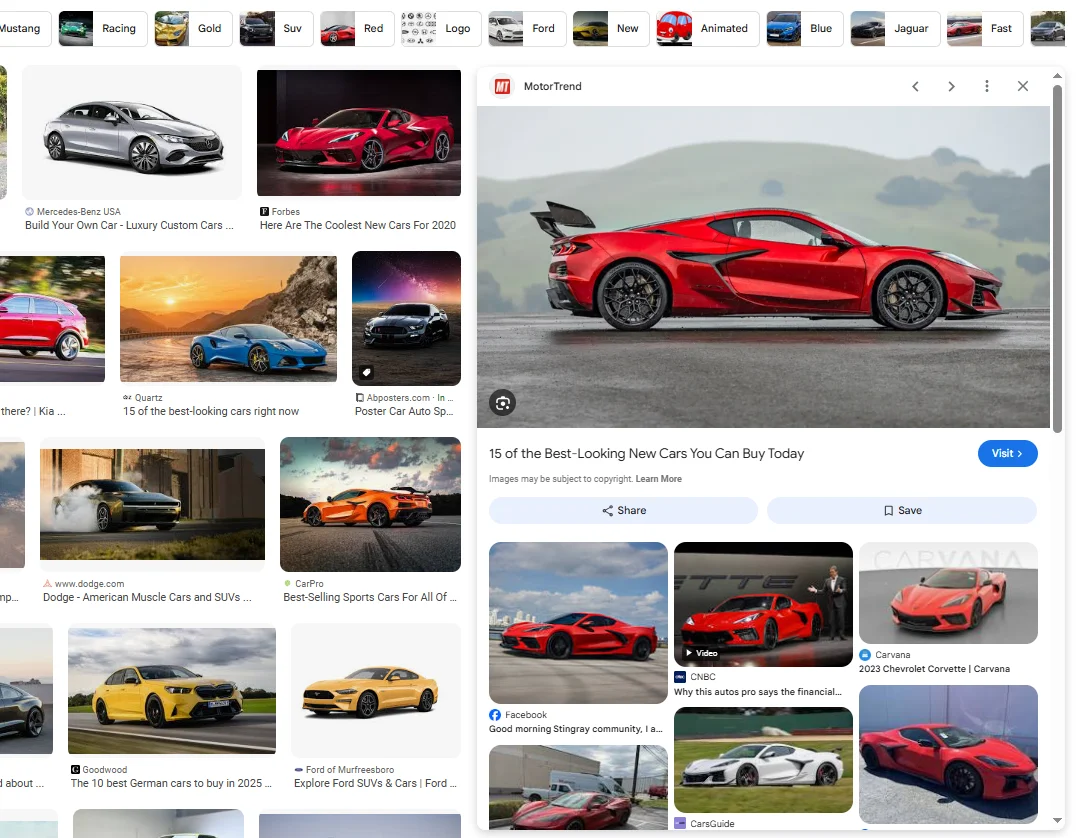
- The expanded preview panel: Click any thumbnail and a side panel opens with a larger preview, the source page, and a link through to the full-size image on the original site. This is where the full-resolution source URL lives
Why Researchers and Marketers Scrape Google Image Data
Once you can pull image results at scale, a lot of manual saving disappears. Here is what people actually use it for:- Building reference and mood boards. Collect a wide set of visual examples for a topic, product, or style in one pass.
- Dataset collection. Gather large sets of labeled images for research or machine learning projects, with their source links attached.
- Competitor and product research. Pull the images a brand uses across the web to study how they present products. To see how those same pages rank, you can also scrape Google search results for the brand’s keywords.
- Brand and image monitoring. Find where a logo or product photo appears online by collecting the source pages behind matching images.
- Content sourcing. Build a shortlist of candidate images with their source pages, so you can check licensing before you use anything.
How to Scrape Google Images Without Code
Here is what the workflow looks like with Chat4Data, an AI web scraper that runs as a Chrome extension. Step 1: Describe your task Open the extension and type what you want in plain English: “Go to Google Images, search for ‘vintage road bikes’, scroll through the results, and scrape the source image URL, source page URL, and alt text for each result.” Step 2: Review the execution plan Before running anything, Chat4Data shows you a step-by-step breakdown of what it plans to do. Which page it visits, which fields it extracts, how it scrolls to load more images. You can adjust the plan or approve it as-is. No credits are used until you hit start. Step 3: Run and export The scraper works through the image grid like a real user, scrolling to load more results and pulling each field. When it finishes, you export everything as Excel, CSV, or JSON, a clean list of image and source links you can work from. Step 4: Save and reuse Save the task once, and every future run skips the AI configuration step. If you collect images for the same kinds of queries regularly, that means one click per run. A few practical notes:- Google Images loads more results as you scroll, so let the scraper keep scrolling to reach the number you want, rather than stopping at the first screen.
- Decide up front whether you want the thumbnail URL or the full-size source URL, and say so in your instruction. They are different links, and the source URL is the one that points to the original file.
- The export gives you the image links in a spreadsheet. To save the actual files, you take that list of URLs and download from it as a second step.
- If Google shows a verification prompt mid-scrape, Chat4Data pauses so you can clear it manually, then picks up where it left off.
- Credits are only consumed during the initial AI configuration, not during extraction. An image search task typically costs around 25-40 credits to set up, and that setup is saved permanently for reuse.
Wrapping Up
Google Images holds a map of where pictures live across the web, and collecting those links used to mean right-clicking your way through a results page. That is no longer the case. With an AI web scraper like Chat4Data, you can scrape Google Images by simply describing what you want. If you want to try it, Chat4Data is available at chat4data.ai and on the Chrome Web Store.Frequently Asked Questions
1. Can you scrape Google Images?
Yes. The image links, source pages, and alt text behind a Google Images search are publicly visible, and they can be collected at scale. You can do it with code, with a paid API, or with a no-code Chrome extension like Chat4Data that handles the whole process through a plain English instruction.2. What data can I scrape from Google Images?
A well-configured scraper can pull:- Thumbnail URL
- Full-size source image URL
- Source page URL (where the image appears)
- Alt text or title
- Image dimensions, where shown
3. Does scraping Google Images download the actual image files?
Not directly. What you collect first is a list of image URLs in a spreadsheet. To get the files themselves, you take that list and download from the URLs as a second step. Separating the two is useful, because it lets you review the source links and check licensing before you save anything.4. Why am I getting thumbnail URLs instead of full-size images?
Google shows a thumbnail it hosts in the grid, not the original file. The full-size image lives on the source website, and its link sits in the expanded preview when you click a result. If you want the originals, tell the scraper to collect the source image URL, not the grid thumbnail.5. How do I get more than the first screen of images?
Google Images loads more results as you scroll. In your instruction, say to scroll and keep loading until you reach the number you want. If you stop at the first screen, you only get the images visible before any scrolling.6. Is there a free Google Images scraper?
Some tools offer free tiers, fine for grabbing a small set of image links. For collecting hundreds of images across many searches on a schedule, paid tools are more practical. If you are starting out, Chat4Data begins at $10/month and you scrape just by typing what you want, with no setup to learn.7. Can I scrape Google Images with Python?
Yes. Common options include:- Libraries: Selenium or Playwright, since the image grid loads more results on scroll and a plain Requests call will not trigger that loading
- Managed APIs: image search APIs that return results as structured data
- No-code alternative: Chat4Data, if you would rather skip the code entirely