

- what Google Maps data actually contains
- why marketers and sales teams scrape it
- how to pull it into a spreadsheet without writing a single line of code
What Is Google Maps Data?
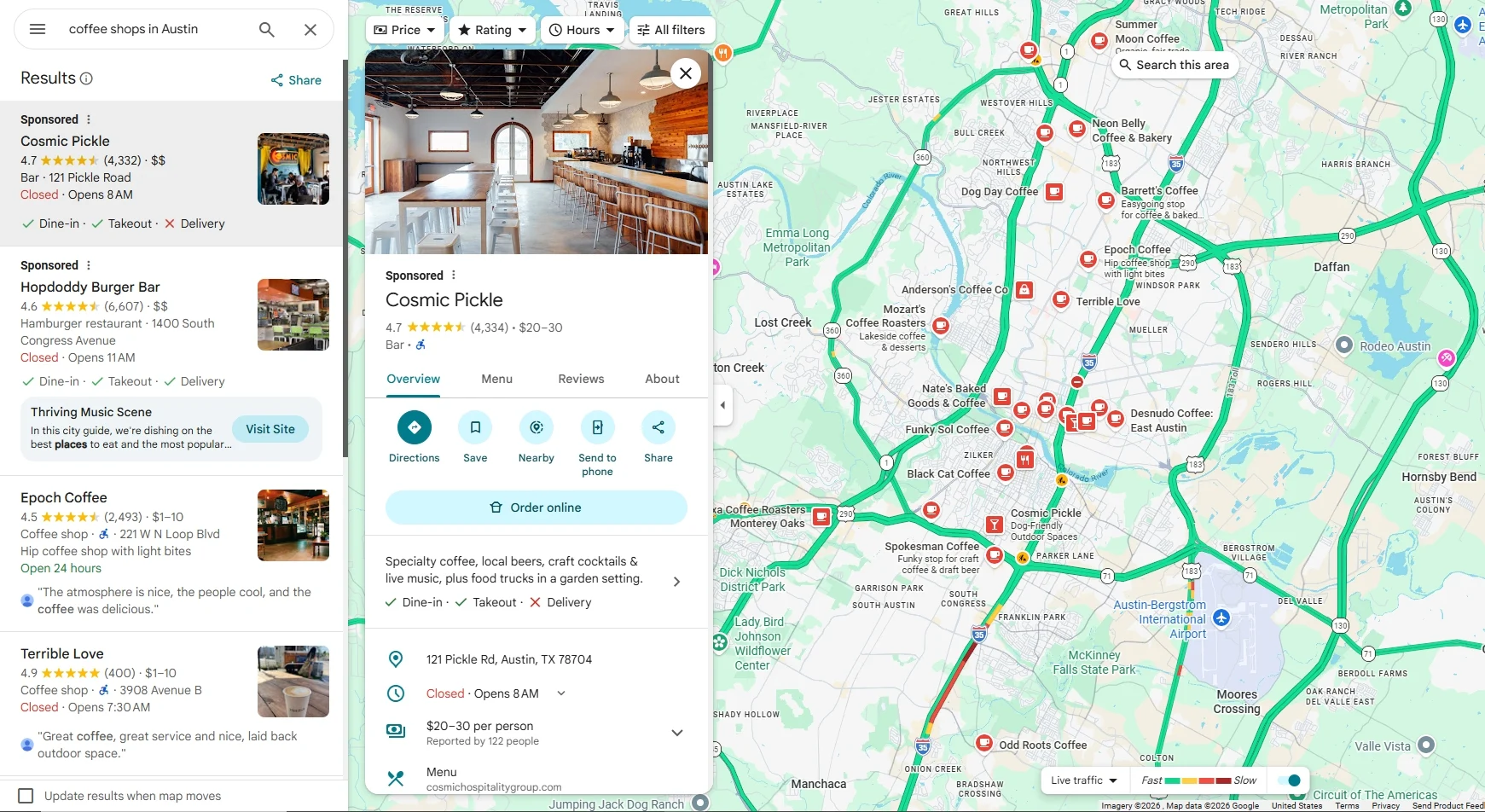
Google Maps data is the structured business information attached to every place listing on the map. When you search a category and location, like “coffee shops in Austin,” each result is a Place, and each Place has a profile. Think of each listing as a business card that Google fills in automatically. A typical Place profile includes:- Business name
- Category (restaurant, plumber, gym)
- Full address
- Phone number
- Website URL
- Star rating and review count
- Opening hours
- Price level
- Photos
- Individual reviews
Where to Find the Data
There are two views where Google Maps exposes this information, and they matter for how you scrape.- The results list (left panel): When you search “coffee shops in Austin,” Google Maps shows a scrollable column of results. This view gives you the name, rating, review count, and category for many businesses at once. It is the fastest way to collect a wide list.

- The individual Place page: Click any result and a detailed panel opens with the full address, phone, website, hours, photos, and reviews. This is where the deeper fields live, including the contact details most lead lists need.
Why Marketers and Sales Teams Scrape Google Maps Data
Once you can pull Place data at scale, a lot of manual work disappears. Here is what people actually use it for:- Lead generation. Build a targeted list of businesses in a category and area, complete with phone numbers and websites, ready for outreach.
- Local market research. See how many competitors operate in a region, how they cluster, and how saturated a category is before you enter it.
- Competitor and reputation tracking. Pull ratings and review counts across rival businesses to benchmark where you stand.
- Review analysis.Collect the actual review text for a set of businesses to spot recurring complaints or praise.
- Data enrichment. Match a list you already have against Maps to fill in missing phone numbers, websites, or categories.
How to Scrape Google Maps Without Code
Here is what the workflow looks like with Chat4Data, an AI web scraper that runs as a Chrome extension. Step 1: Describe your task Open the extension and type what you want in plain English: “Go to Google Maps, search for ‘coffee shops in Austin’, scroll through the results list, and scrape the business name, rating, review count, address, phone number, and website for each result.” Step 2: Review the execution plan Before running anything, Chat4Data shows you a step-by-step breakdown of what it plans to do. Which pages it visits, which fields it extracts, how it scrolls and paginates through the results. You can adjust the plan or approve it as-is. No credits are used until you hit start. Step 3: Run and export The scraper works through the Maps results like a real user, scrolling and clicking into listings to grab the deeper fields. When it finishes, you export everything as Excel, CSV, or JSON. Step 4: Save and reuse Save the task once, and every future run skips the AI configuration step. If you track the same categories or cities on a schedule, that means one click per run. A few practical notes:- Google Maps loads results as you scroll, so let the scraper work through the full list rather than stopping early. For very large areas, splitting the search into smaller zones gives more complete coverage.
- If Google shows a verification prompt mid-scrape, Chat4Data pauses so you can clear it manually, then picks up where it left off.
- Credits are only consumed during the initial AI configuration, not during extraction. A Maps task typically costs around 25-40 credits to set up, and that setup is saved permanently for reuse.
Wrapping Up
Google Maps holds the contact and reputation data behind millions of local businesses, and collecting it used to mean either hours of copy-paste or hiring a developer. That is no longer the case. With an AI web scraper like Chat4Data, you can scrape Google Maps by simply describing what you want. If you want to try it, Chat4Data is available at chat4data.ai and on the Chrome Web Store.Frequently Asked Questions
1. Can you scrape Google Maps?
Yes. Every business listing on Google Maps shows publicly visible data, like name, address, phone, website, rating, and reviews, and that data can be collected at scale. You can do it with code, with a paid API, or with a no-code Chrome extension like Chat4Data that handles the whole process through a plain English instruction.2. What data can I scrape from Google Maps?
A well-configured scraper can pull:- Business name and category
- Full address
- Phone number
- Website URL
- Star rating and total review count
- Opening hours and price level
- Photos
- Individual review text and reviewer names
3. How do I tell the scraper which businesses to collect?
You point it at the listings you want, in one of two common ways:- Category and location search: “Search ‘dentists in Chicago’ on Google Maps and scrape every result.” This is how most lead lists get built.
- A specific business or list: If you already have target businesses, point the scraper at each Place page and pull the detailed fields.
4. Can I scrape emails from Google Maps?
Google Maps itself rarely shows an email address. What it does show is the business website. The common workflow is to scrape the website URLs from Maps first, then run a second pass over those sites to find contact emails. Chat4Data can handle both steps, since you can point it at the website list you collected. If you’d rather find those businesses through search instead, see how to scrape Google search results.5. Can I scrape Google Maps reviews?
Yes. Reviews live on each individual Place page. You can ask the scraper to open each listing and collect the review text, rating, reviewer name, and date. Keep in mind that listings with thousands of reviews load them in batches as you scroll, so collecting all of them takes longer than pulling the top few.6. Is the data real-time? Can it update automatically?
The data reflects the moment you run the scrape, so it is as current as your latest run. A browser-based tool like Chat4Data runs when you trigger it, rather than unattended in the cloud, but saved tasks make repeat runs one click. For weekly lead pulls or rating checks, you open the saved task and re-run it on your own schedule.7. Why are my scraped results different from what I see on Google Maps?
A few normal reasons the lists can differ:- Location. Maps personalizes results by the browser’s location, so a search run from a different place returns a different set and order.
- Search terms. Slightly different wording (“cafe” vs “coffee shop”) surfaces different listings.
- Ranking changes. Google reorders local results frequently, so two runs a day apart will not match exactly.
8. Is there a free Google Maps scraper?
Some tools offer free tiers, which are fine for small one-off pulls. For collecting many listings across multiple searches reliably, paid tools are more practical. If you are starting out, Chat4Data begins at $10/month and you scrape just by typing what you want, with no setup to learn.9. Can I scrape Google Maps with Python?
Yes. Common options include:- Libraries: Requests and BeautifulSoup for simple cases, Selenium or Playwright for the dynamic, scroll-loaded content Maps uses
- Managed APIs: services that handle proxies and anti-bot measures for you
- No-code alternative: Chat4Data, if you would rather skip the code entirely